Evidence Summary
- Workflow run
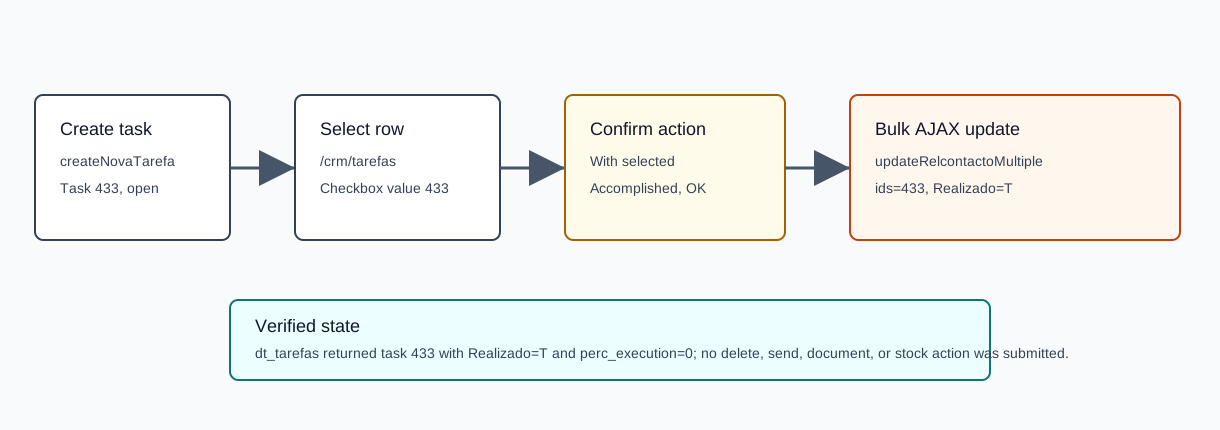
crm-task-bulk-complete-20260519T102105Z- Created task
433- Subject
AI Demo CRM Bulk Complete 20260519T102105Z- Bulk result
{"sim":1,"nao":0,"list_nao":""}- Final state
Realizado=Tandperc_execution=0
Before You Start
- Open CRM then Operations then Tasks, or navigate to
/crm/tarefas. - Use the task search and filters to show only the rows you intend to change.
- This workflow changes selected tasks in bulk. The verified run used one disposable task and did not delete records, send SMS/email, create documents, or change stock.
Mark Selected Tasks Accomplished
- Select the checkbox for each intended task row. The verified checkbox value was
433. - Open the With selected dropdown. The button updates to show the selected count.
- Choose Accomplished.
- Review the confirmation dialog. The verified dialog text was
Are you sure?with Cancel and OK. - Click OK.
- Refresh or search the list to confirm the selected task is no longer shown in open-task filtering.
Verified Payload
The bulk menu sends an AJAX request to the central endpoint.
| Field | Verified value | Meaning |
|---|---|---|
endpoint | POST /ajaxserver | Central AJAX endpoint. |
action | updateRelcontactoMultiple | Bulk-updates selected CRM task fields. |
ids | 433 | Selected task id list. |
campo | Realizado | Field being changed. |
valor | T | Marks the task as accomplished. |
response | {"sim":1,"nao":0,"list_nao":""} | One successful update, zero failures. |
Confirm Completion
- Search for the subject or task id after the bulk request completes.
- Confirm the row shows
Realizado=T. - Be aware that this bulk action only verified the accomplished flag. In the verified row,
perc_executionremained0; use the task detail page workflow when the percent execution value must also be set to100.
The verified dt_tarefas lookup returned one matching row with numrel=433, Assunto=AI Demo CRM Bulk Complete 20260519T102105Z, CodTipoEv=ToDo, FDataPrevRealiz=19/05/2026 17:35, Realizado=T, perc_execution=0, and Prioridade=N.
Artifacts
raw/playwright/workflows/crm-task-bulk-complete-20260519T102105Z.jsonassets/screenshots/crm-task-bulk-complete-20260519T102105Z-04-task-list-filtered-before-bulk.pngassets/screenshots/crm-task-bulk-complete-20260519T102105Z-05-task-selected.pngassets/screenshots/crm-task-bulk-complete-20260519T102105Z-06-bulk-accomplished-confirmation.pngassets/screenshots/crm-task-bulk-complete-20260519T102105Z-07-task-list-after-bulk.png