Evidence Summary
- Route
/entidades/fornecedores- Page title
OG - Suppliers- Workflow run
create-supplier-20260519T030323Z- Created supplier
[100] AI Demo Supplier 20260519T030323Z- Verification
DT_SelectFornecedoresreturnedrecordsFiltered: 1- Evidence file
raw/playwright/workflows/latest-create-supplier.json
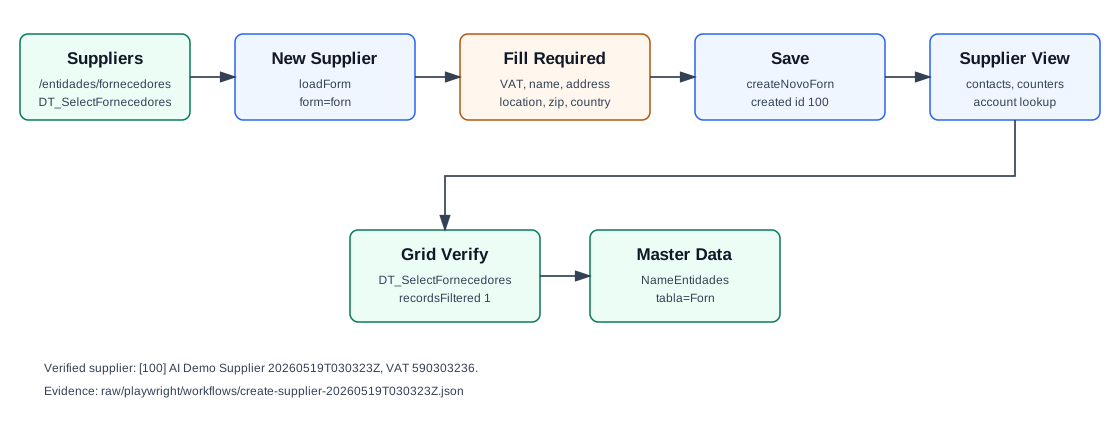
When to Use This
Use this workflow before recording purchases, supplier invoices, purchase orders, supplier receipts, supplier stock documents, or payable/accounting activity for a vendor that does not already exist in OfficeGest.
Step-by-Step
- Open Entities / Suppliers, or navigate directly to
/entidades/fornecedores. - Click New Supplier. OfficeGest opens the side modal Add new supplier.
- Choose Country. The verified run used Portugal, stored as
CodPais=PT. - Enter the required VAT Number. In the supplier form this field is required, unlike the customer create modal where VAT was optional in the HTML form.
- Enter the required identity and address fields: Name, Address, Location, and Zip Code.
- Optionally fill Address 2, Email, Phone, Cell phone, and Classification.
- Click Save. OfficeGest posts
createNovoForn. - After saving, OfficeGest refreshes the supplier list and loads supplier detail data such as contacts, counters, accounting account selection, and entity selectors.
- Search the Suppliers grid by name or VAT number to confirm the new supplier appears. The verified record returned
recordsFiltered: 1.
Required and Default Fields
| Field | Verified behavior |
|---|---|
| Country | Required select. The workflow used PT. |
| VAT Number | Required. Stored as NContrib. |
| Name | Required. Stored as Nome. |
| Address | Required. Stored as Morada. |
| Address 2 | Optional. Stored as Morada2. |
| Location | Required. Stored as Localidade. |
| Zip Code | Required. Stored as CodPostal. The modal also called a postal-code selector endpoint for the entered value. |
Optional. Stored as EMail. | |
| Phone and Cell phone | Optional. Prefix and number are combined on the saved record, for example +351.244000002 and +351.929030323. |
| Classification | Optional. The verified run left CodClassif blank. |
Verified Created Record
| Field | Value |
|---|---|
| Supplier id | 100 |
| Name | AI Demo Supplier 20260519T030323Z |
| VAT | 590303236 |
| Address | Rua Fornecedor Demo 19 |
| Address 2 | Armazem 2 |
| Location | Leiria |
| Zip Code | 2400-002 |
ai-demo-supplier-20260519t030323z@example.invalid | |
| Phone | +351.244000002 |
| Cell phone | +351.929030323 |
| Accounting account | 2211100100 |
| Status | Activo: T |
Backend Calls Observed
| Action | Purpose |
|---|---|
DT_SelectFornecedores | Loads and filters the Suppliers grid. The verified lookup by supplier name returned one row for id 100. |
loadForm&form=forn&id=novoforn | Loads the New Supplier modal HTML, including hidden fields for website, share capital, fax, and observations. |
Sel2_Select | Looks up postal-code data while the zip code is entered. |
createNovoForn | Creates the supplier. The verified payload included country, VAT, name, address, location, zip code, email, phone, mobile, and classification. |
counters&option=fornecedores | Loads counts for supplier tabs such as contacts, appointments, notes, attachments, and loyalty. |
entidades&option=entityContacts | Loads the saved supplier phone and mobile contact list using entity_type=F and entity_id=100. |
Sel2_Contas | Resolves the generated accounting account 2211100100. |
NameEntidades | Reads the created supplier by CodTerc. The correct table parameter is tabla=Forn; tabla=Fornecedor returned an empty array. |
Raw evidence: raw/playwright/workflows/create-supplier-20260519T030323Z.json. Screenshots: assets/screenshots/create-supplier-20260519T030323Z-01-suppliers-list.png through assets/screenshots/create-supplier-20260519T030323Z-05-verified-list.png.
Validation Notes
- The save endpoint returned an empty body, so the reliable success proof is the follow-up supplier grid lookup and the
NameEntidadesmaster-data lookup. - After save, OfficeGest created phone-contact entries for the supplier and generated the accounting account
2211100100. - The list page initially fires two DataTables requests: one empty pass and one filtered to active suppliers.
- Supplier master records use
TipoTerc=F; customer master records use a different table parameter.