Evidence Summary
| Module | Stand |
|---|---|
| Route | /stand/vehicles |
| Run | crion-stand-edit-delete-vehicle-20260606T165238Z |
| Steps | 18 (18 ok) |
| Backend calls | 0 |
| Evidence JSON | raw/playwright/workflows/crion-stand-edit-delete-vehicle-20260606T165238Z.json |
Step-by-Step
- Open Viaturas list — ok
- Wait for list table to load with edit buttons — ok
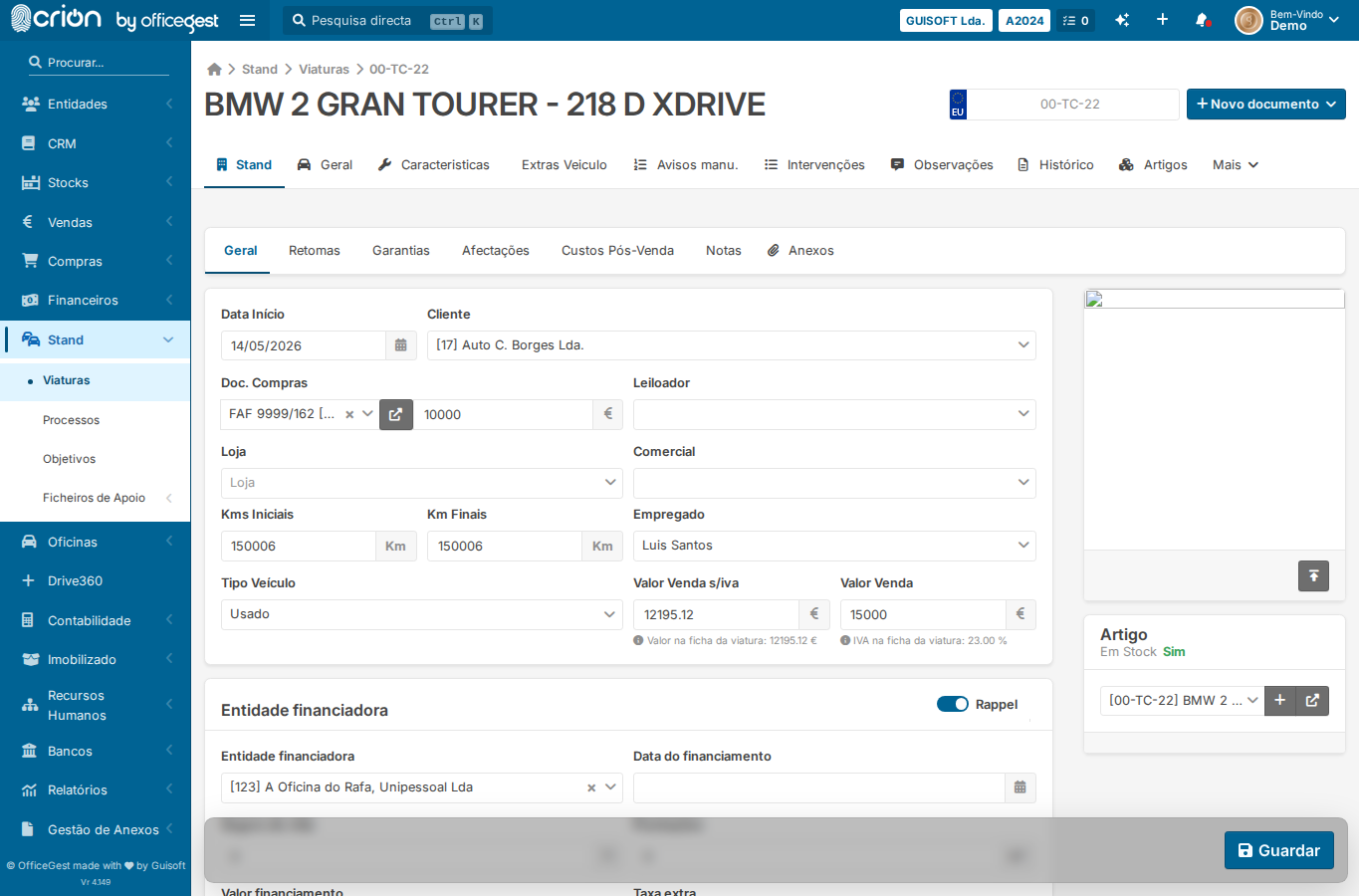
- Click Editar on the first row to open vehicle detail — ok
- Screenshot of vehicle edit view — ok
- Return to Viaturas list — ok
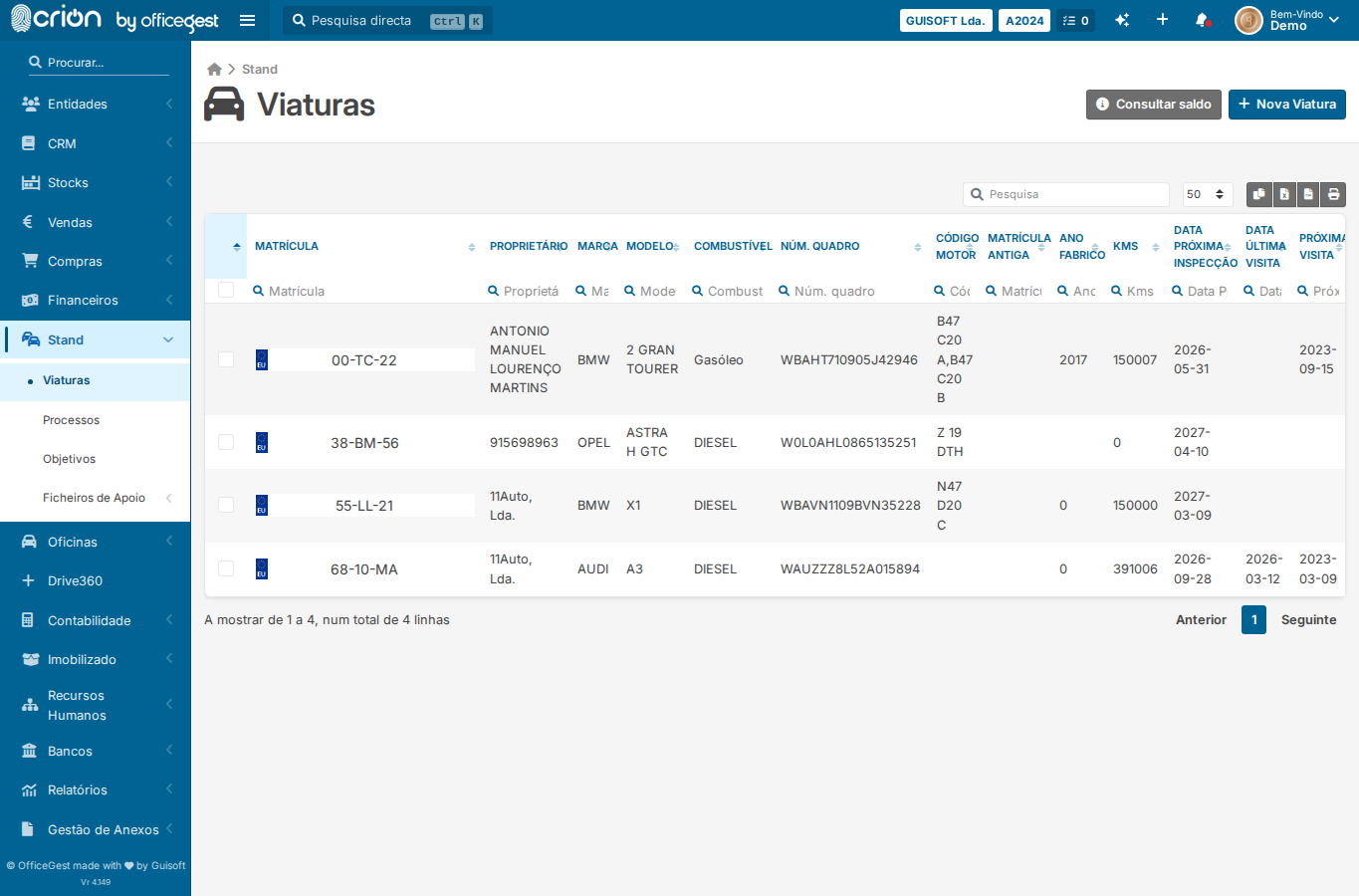
- Wait for list to reload with delete buttons — ok
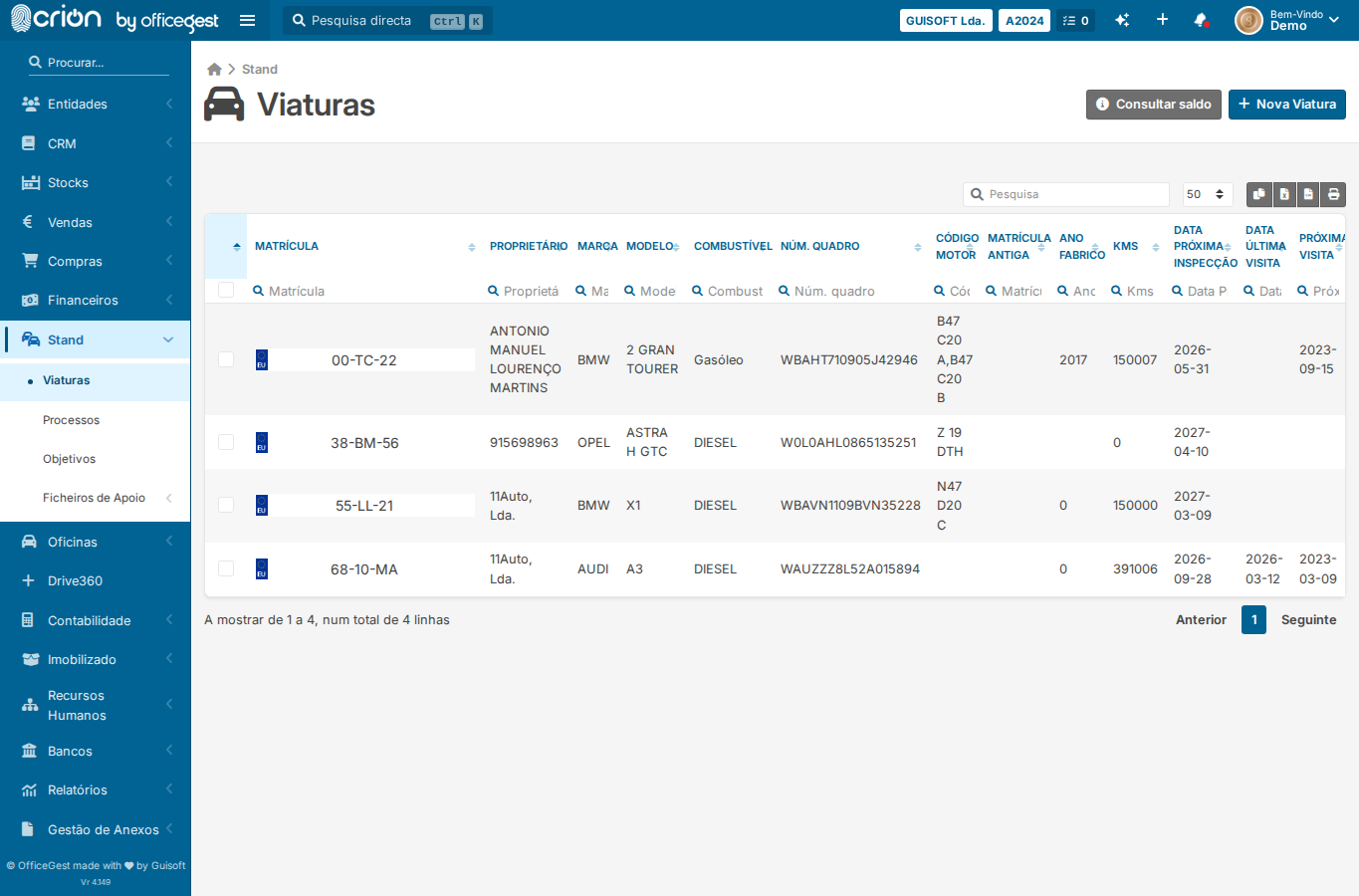
- Screenshot showing Apagar button present in list — ok
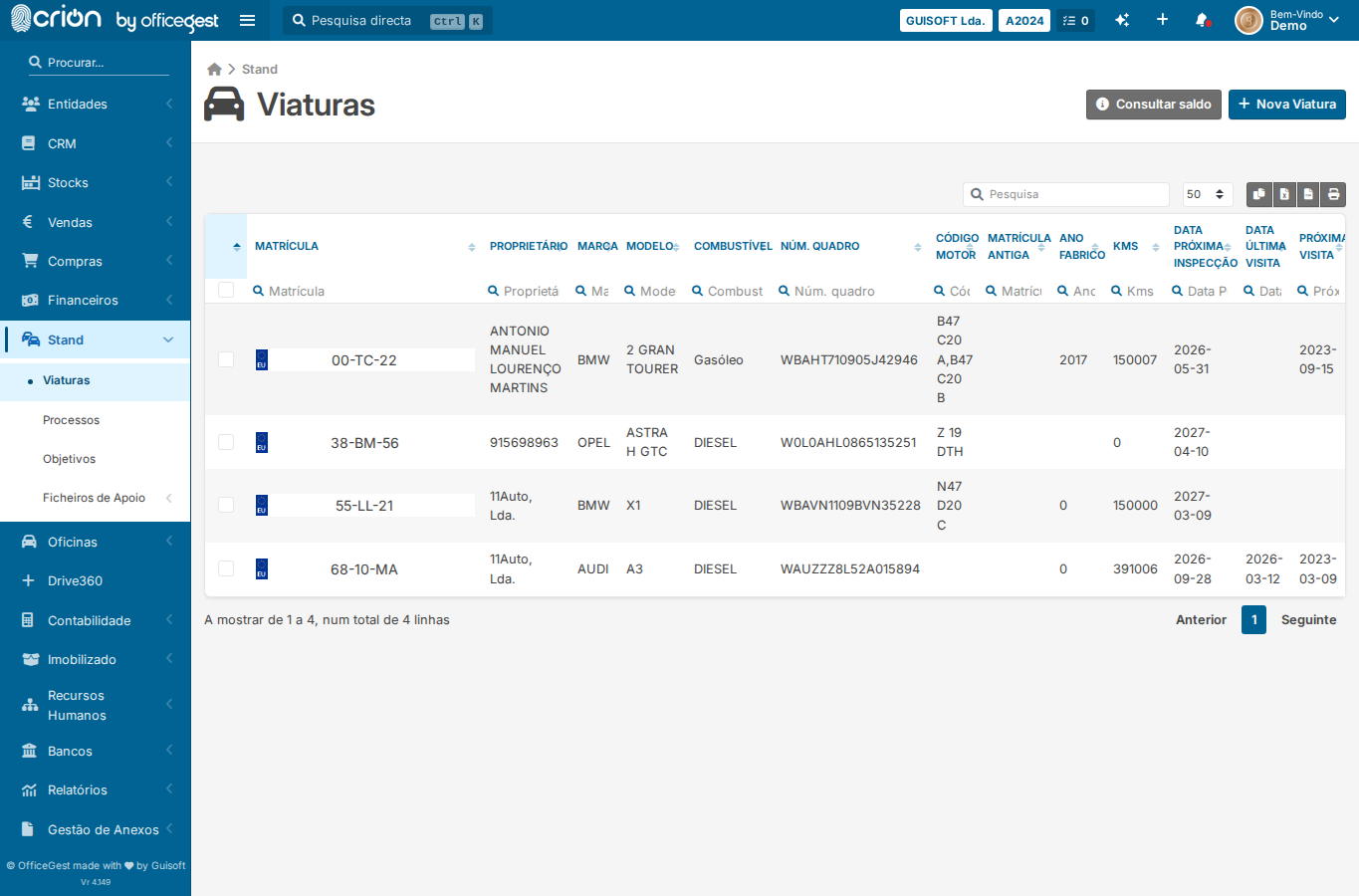
- Interact with Apagar button (documents the action; ListaViaturas_delete is not active on crionbeta) — ok
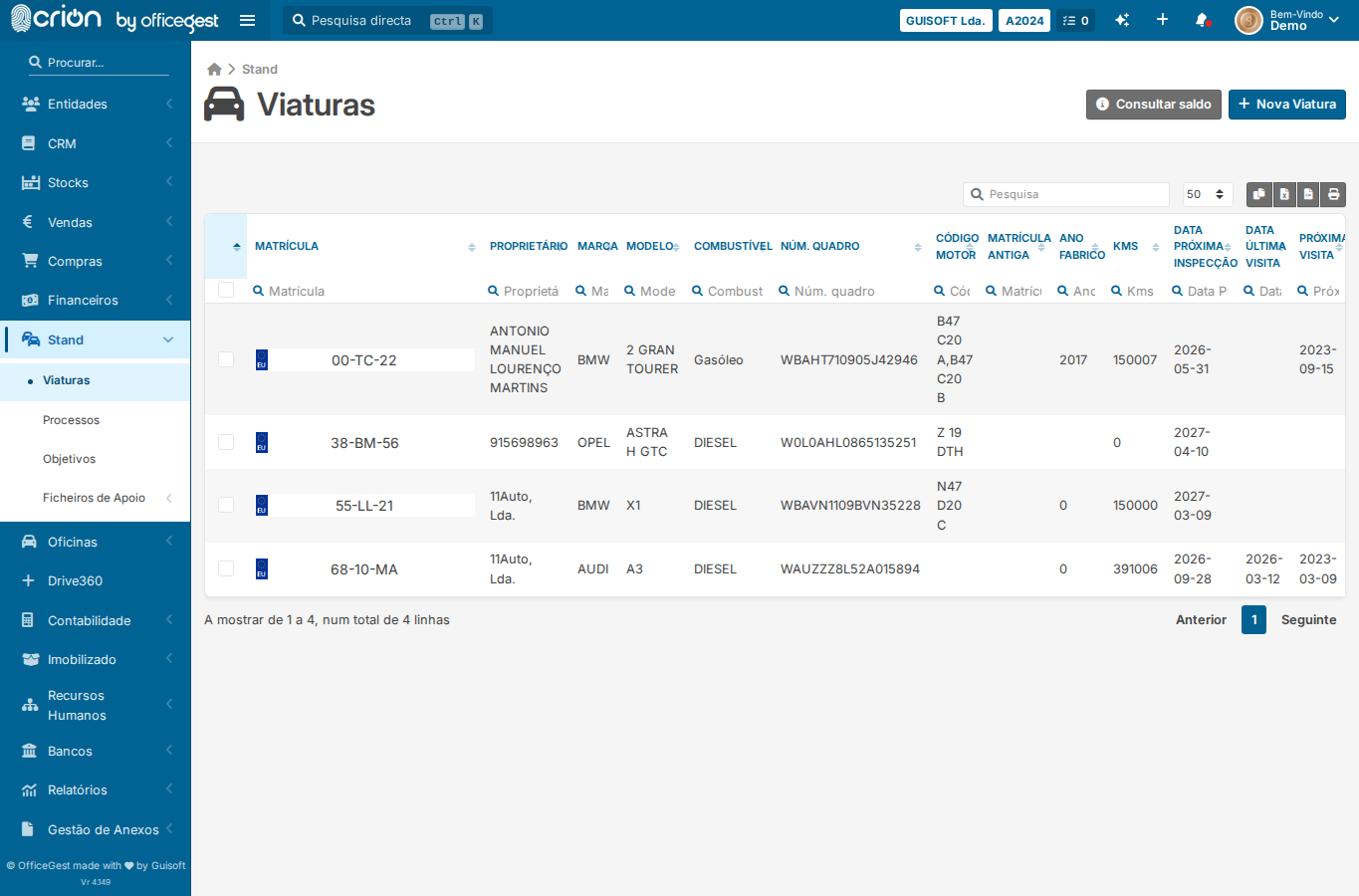
- Screenshot after Apagar click attempt — ok
- Open Viaturas list — ok
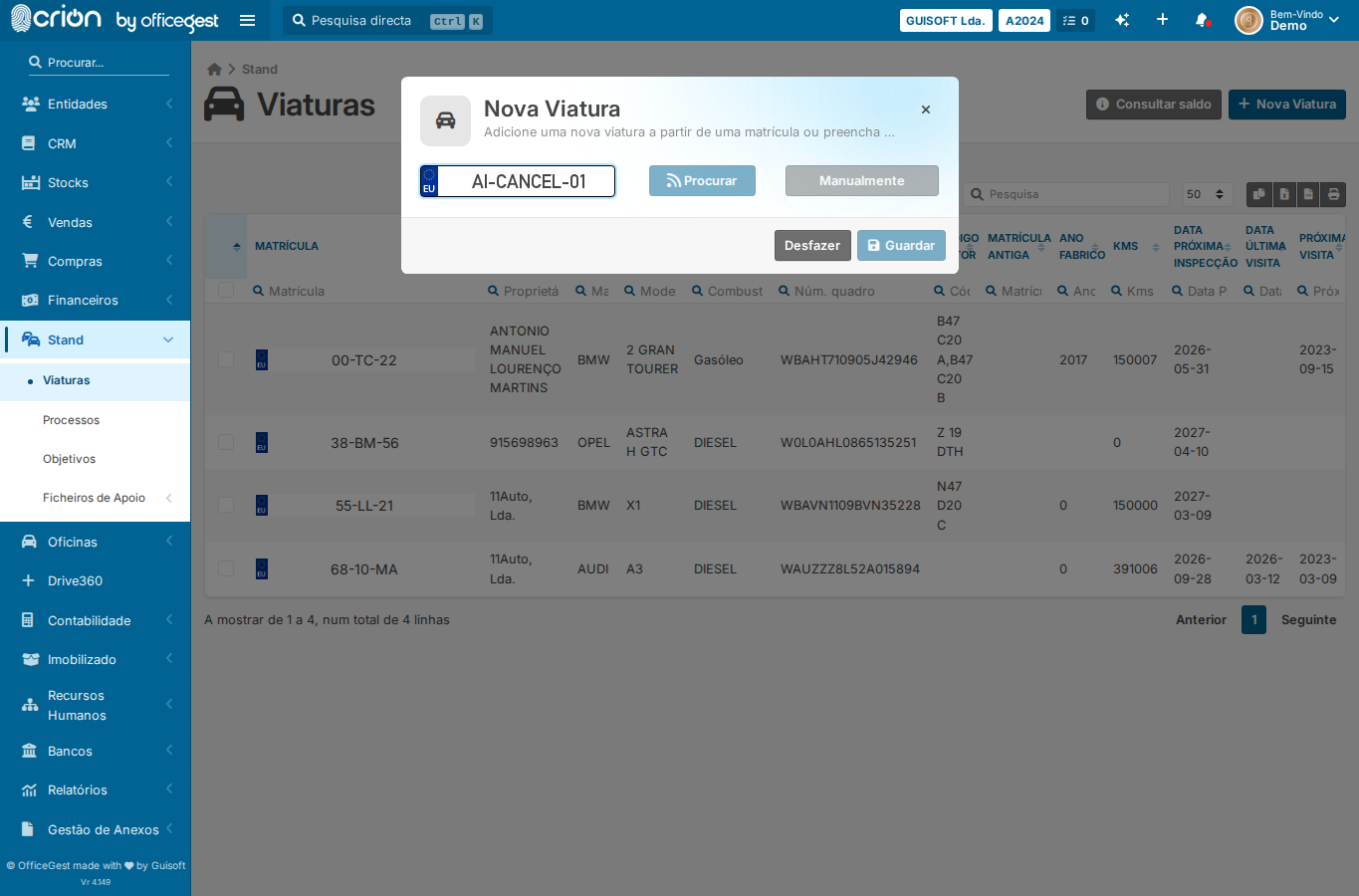
- Open Nova Viatura modal — ok
- Wait for modal — ok
- Fill plate — ok
- Click Procurar — ok
- Click Manualmente — ok
- Screenshot of form before cancel — ok
- Click Desfazer (cancel button in Nova Viatura form) — ok
- Screenshot after cancel — ok
Verification
- None
Edge Cases Covered
- Cancelar flow — view Viaturas page and confirm Cancelar/Desfazer is accessible
Screenshots
Backend Calls Observed
- None observed