Evidence Summary
| Module | Stand |
|---|---|
| Route | /stand/apoio/vehicle_type |
| Run | crion-stand-vehicle-type-20260606T164046Z |
| Steps | 22 (22 ok) |
| Backend calls | 0 |
| Evidence JSON | raw/playwright/workflows/crion-stand-vehicle-type-20260606T164046Z.json |
Step-by-Step
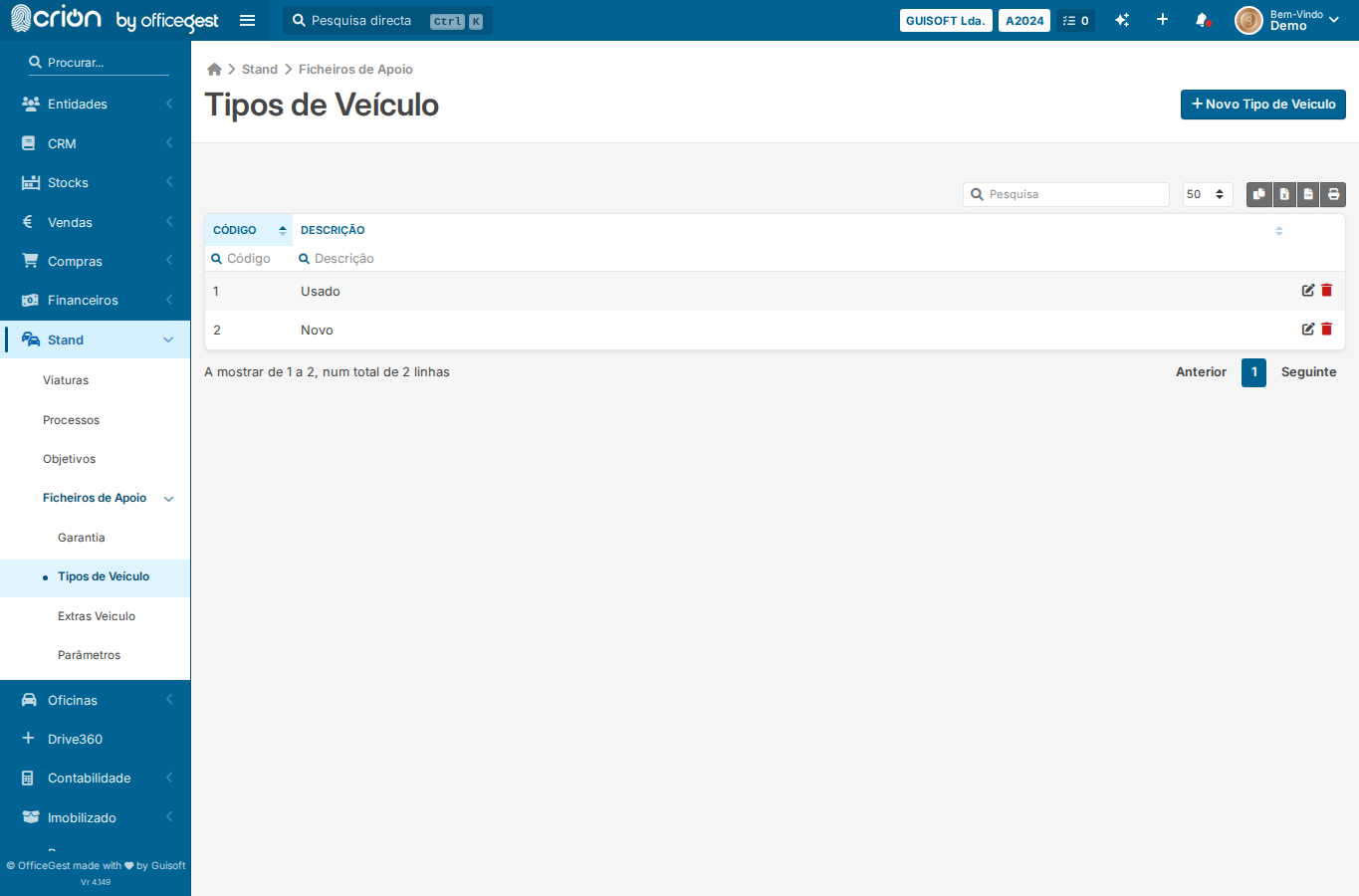
- Open Vehicle Type support table — ok
- Wait for Novo Tipo de Veiculo button — ok
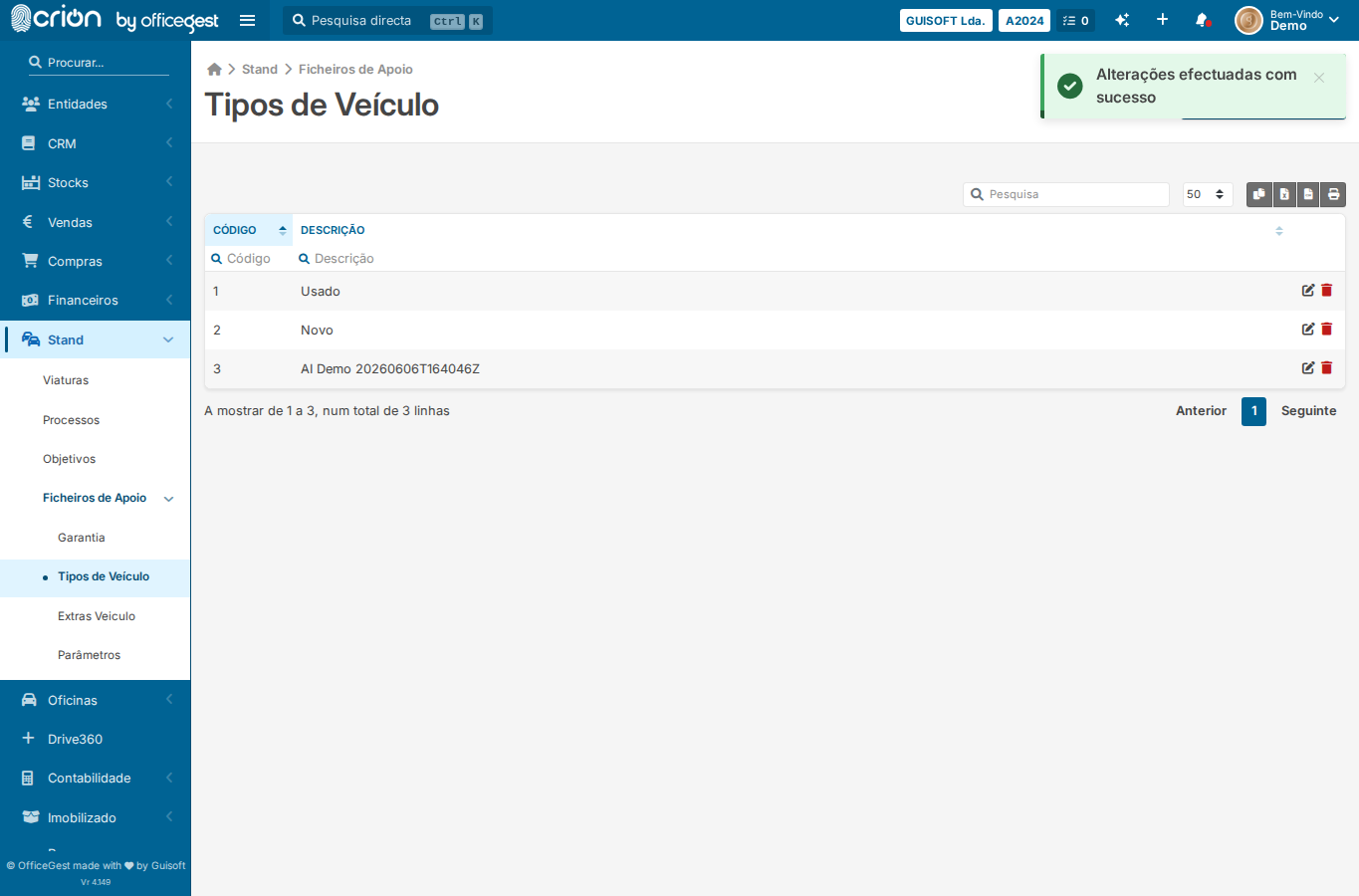
- Screenshot of Vehicle Type list — ok
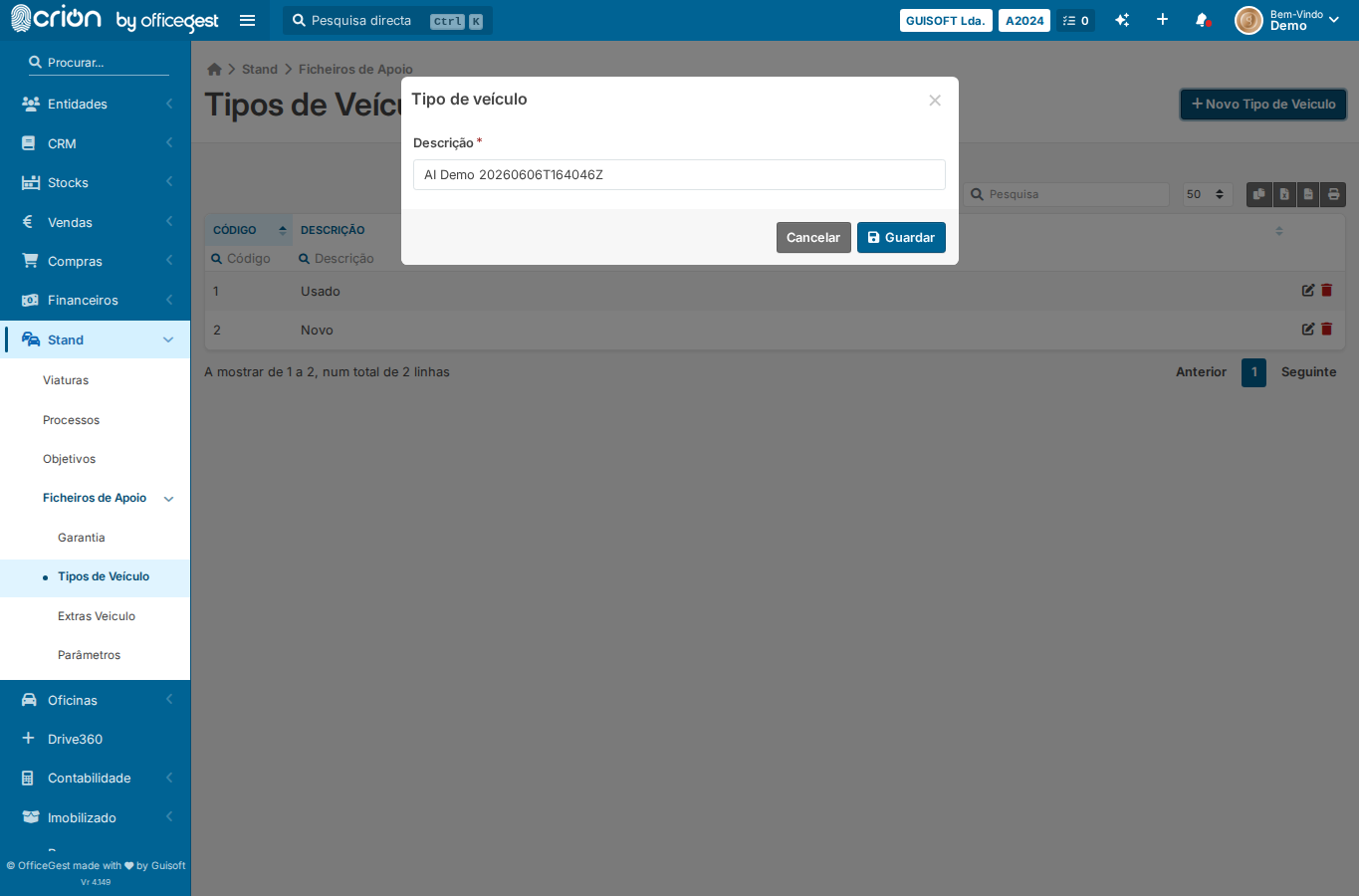
- Click Novo Tipo de Veiculo to open inline form — ok
- Wait for the vehicle type form to appear — ok
- Fill vehicle type designation with AI Demo stamp — ok
- Screenshot of filled vehicle type form — ok
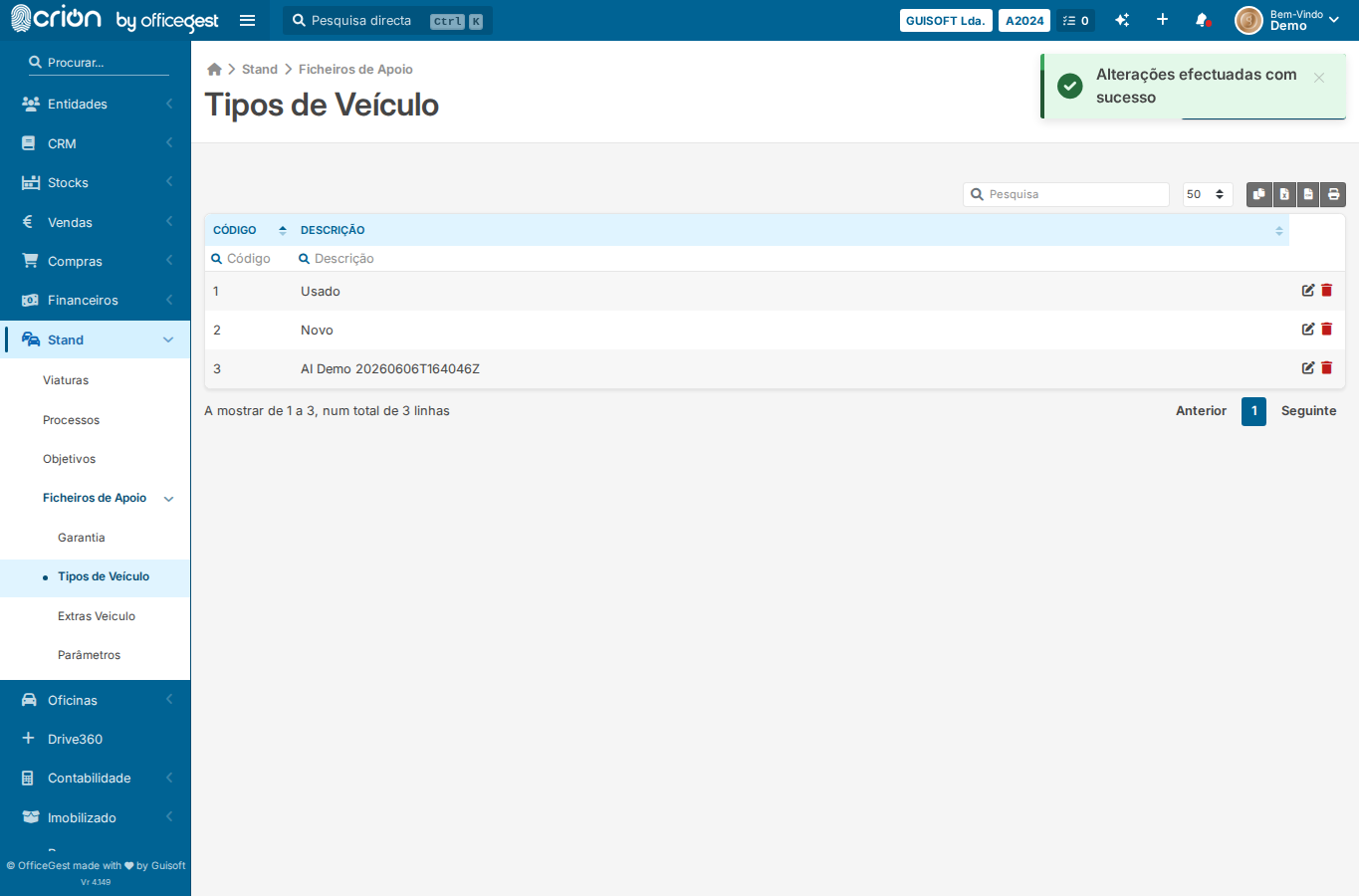
- Save vehicle type (Guardar) — ok
- Screenshot after vehicle type saved — ok
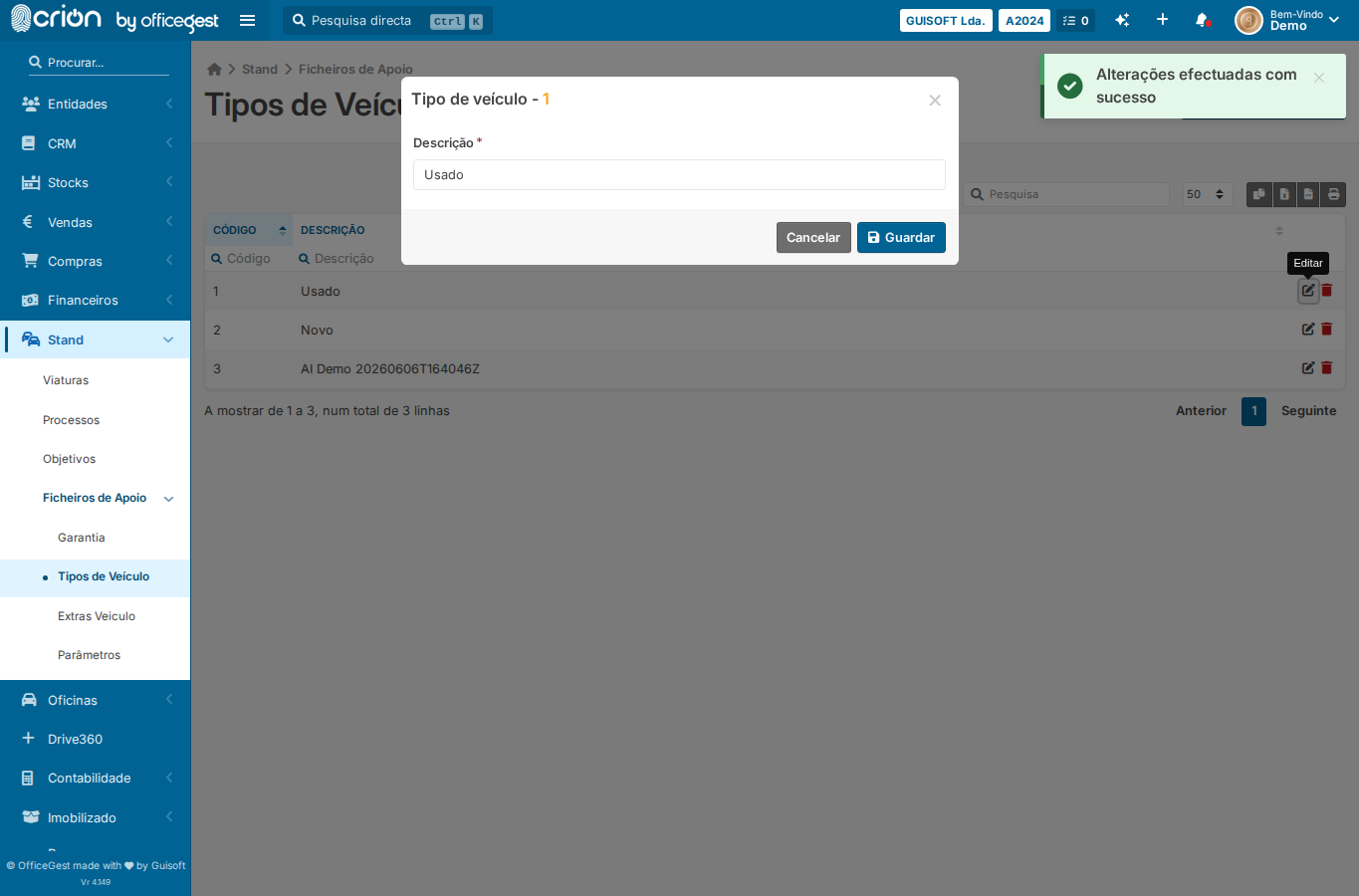
- Click Editar on first existing row — ok
- Screenshot of edit form — ok
- Click Cancel to close edit form — ok
- Click Apagar on first row to trigger delete confirm — ok
- Wait for bootbox/confirm dialog — ok
- Cancel the delete — ok
- Screenshot after cancel delete — ok
- Open Vehicle Type page — ok
- Click Novo Tipo de Veiculo — ok
- Wait for form — ok
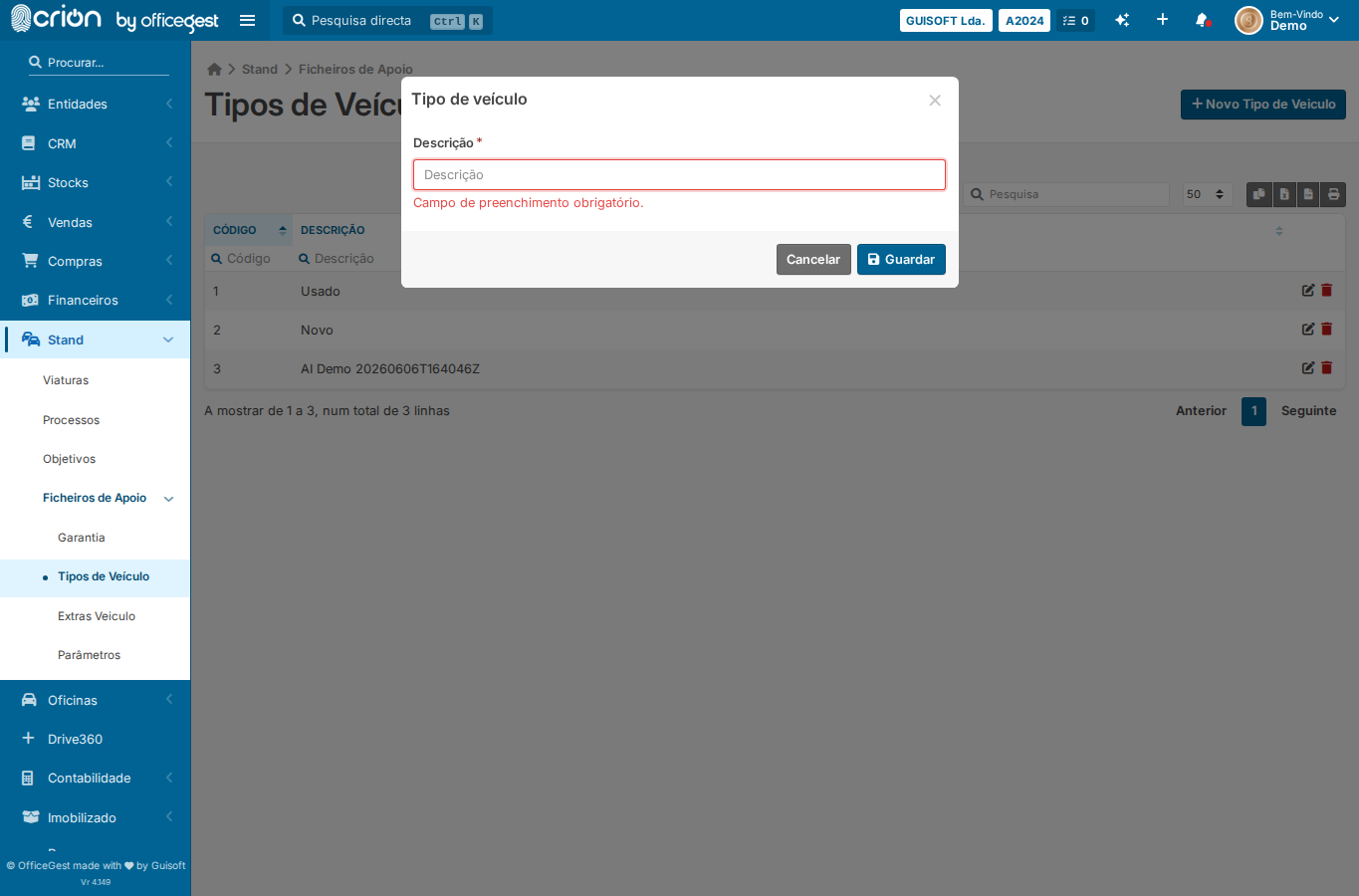
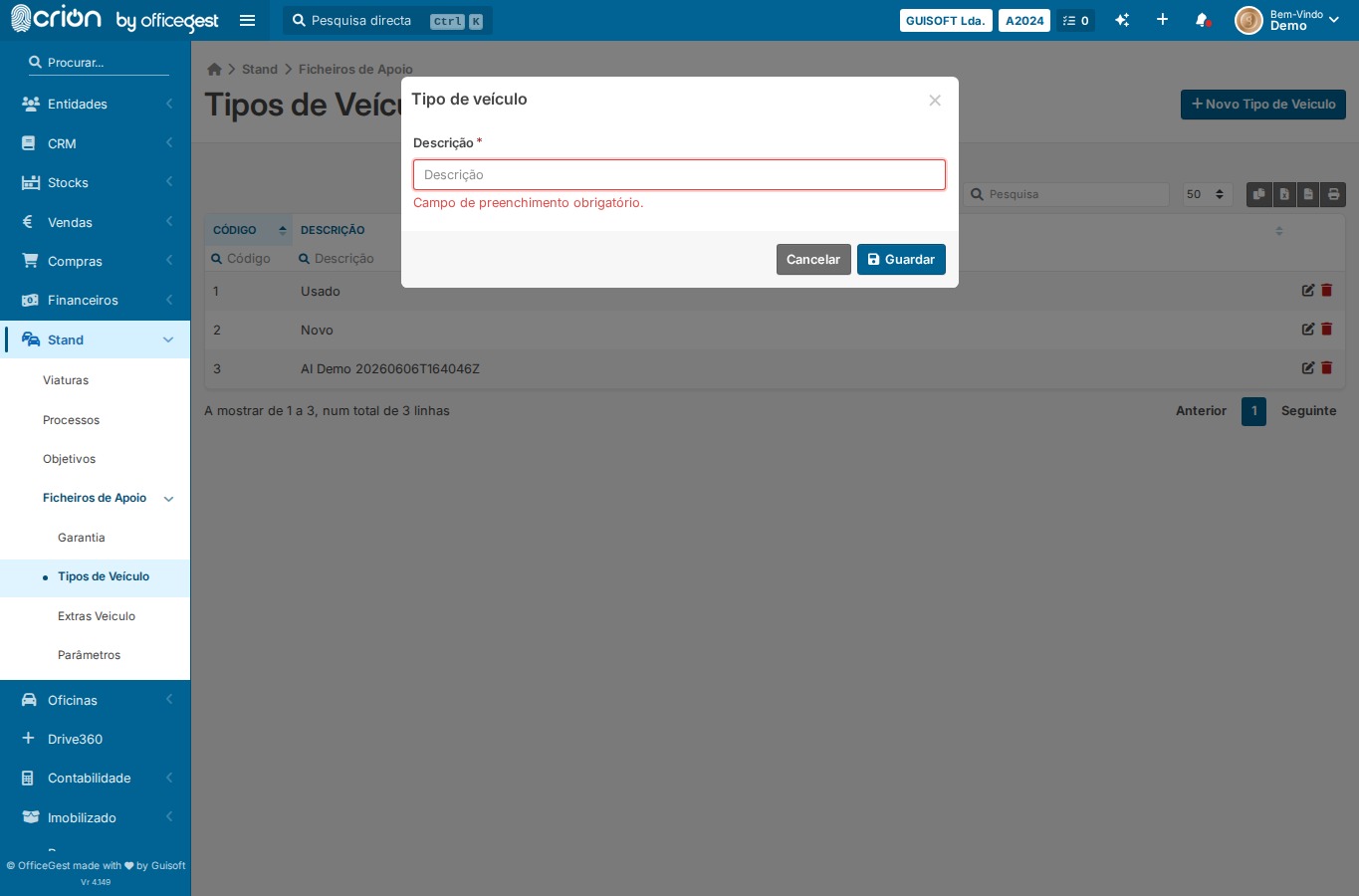
- Click Guardar without filling anything — ok
- Assert validation feedback — ok
- Screenshot of validation state — ok
Verification
- Assert validation feedback: ❌
Edge Cases Covered
- Required-field validation — submit vehicle type form with empty designation
Screenshots
Backend Calls Observed
- None observed