Evidence Summary
- Workflow run
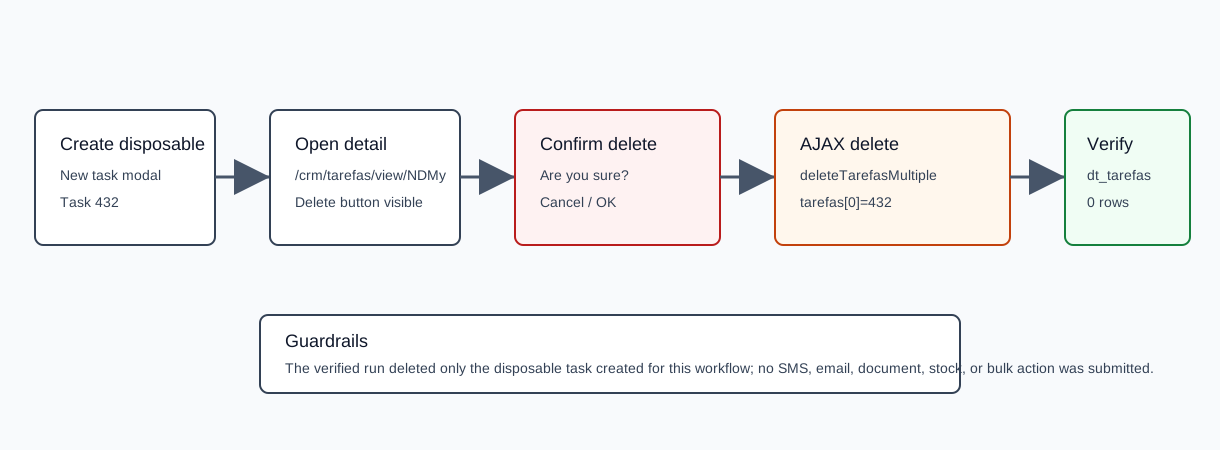
crm-task-delete-20260519T095857Z- Deleted task
432- Subject
AI Demo CRM Task Delete 20260519T095857Z- Final verification
dt_tarefassubject search returnedrecordsFiltered=0
Before You Start
- Open CRM then Operations then Tasks, or navigate to
/crm/tarefas. - Search for the task you intend to remove and open its detail page.
- Deletion is permanent for the task row in the demo list. The verified run created and deleted a disposable task so existing task evidence stayed intact.
Delete the Task
- Open the task detail page.
- Confirm you are on the correct task by checking the page route, task number, and subject.
- Click Delete.
- OfficeGest opens a confirmation dialog with the message Are you sure you want to delete?.
- Click OK to delete, or Cancel to keep the task.
- After confirmation, OfficeGest returns to the Tasks list.
Verified Backend Call
The detail-page Delete button calls the shared task delete function and posts to the central AJAX endpoint.
| Field | Verified value | Meaning |
|---|---|---|
confirm dialog | Are you sure you want to delete? | Bootbox confirmation shown before deletion. |
endpoint | POST /ajaxserver | Central OfficeGest AJAX endpoint. |
action | deleteTarefasMultiple | Deletes one or more CRM tasks. |
tarefas[0] | 432 | Deleted task id. |
HTTP status | 200 | Delete request completed successfully. The captured response body was empty. |
redirect | /crm/tarefas/ | OfficeGest returned to the task list after deletion. |
Confirm Deletion
- Return to
/crm/tarefas. - Search by the deleted task subject or id.
- Confirm no matching row appears.
The verified dt_tarefas lookup after deletion returned recordsTotal=80, recordsFiltered=0, and an empty matchingRows array for subject AI Demo CRM Task Delete 20260519T095857Z.
Artifacts
raw/playwright/workflows/crm-task-delete-20260519T095857Z.jsonassets/screenshots/crm-task-delete-20260519T095857Z-01-task-list-before-create.pngassets/screenshots/crm-task-delete-20260519T095857Z-04-task-list-after-create.pngassets/screenshots/crm-task-delete-20260519T095857Z-05-task-detail-before-delete.pngassets/screenshots/crm-task-delete-20260519T095857Z-06-delete-confirmation.pngassets/screenshots/crm-task-delete-20260519T095857Z-07-task-list-after-delete.png