Evidence Summary
- Workflow run
crm-task-contact-20260519T101421Z- Updated task
431- Linked customer
910,100 Ouvidos Lda- Linked contact
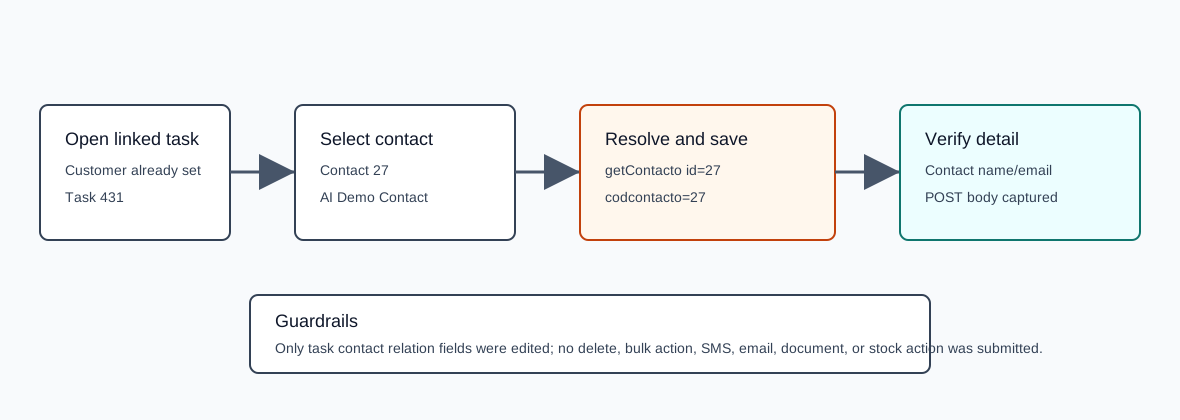
27,AI Demo Contact 20260519T030819Z
Before You Start
- Open the CRM task detail page.
- Choose an entity type that supports contacts: Customer, Supplier, or Prospect.
- Link the entity first. The verified workflow used Customer
910.
Link the Contact
- Open the task detail page.
- Confirm Entity Type and the entity record are already selected.
- Use the Contact selector to search and choose the contact.
- Confirm the read-only contact fields fill in, including name, e-mail, phone, and mobile when available.
- Click Save.
Verified Selectors and Payload
| Field or call | Verified value | Meaning |
|---|---|---|
Sel2_Select_v2 | table=contactos, id=CodContacto, value=Nome | Searches active contacts for the Contact selector. |
getContacto | id=27 | Loads the selected contact summary fields. |
codcontacto | 27 | Saved contact id. |
tipoterc / codterc | C / 910 | Existing customer relation preserved. |
POST endpoint | /crm/tarefas/view/NDMx | Same task detail save endpoint used by task edit workflows. |
Confirm the Link
- Reload the task detail page.
- Confirm the selected contact remains in the Contact selector.
- Confirm the contact name and e-mail fields show the expected values.
The verified reload showed codcontacto=27, contacto_Nome=AI Demo Contact 20260519T030819Z, and contacto_EMail=ai-demo-contact-20260519t030819z@example.invalid. The verified save payload included codcontacto=27.
Artifacts
raw/playwright/workflows/crm-task-contact-20260519T101421Z.jsonassets/screenshots/crm-task-contact-20260519T101421Z-01-task-detail-before-contact.pngassets/screenshots/crm-task-contact-20260519T101421Z-02-task-detail-contact-filled.pngassets/screenshots/crm-task-contact-20260519T101421Z-03-task-detail-after-save.png