Evidence Summary
- Workflow run
ticket-filters-crud-20260519T153928Z- Route
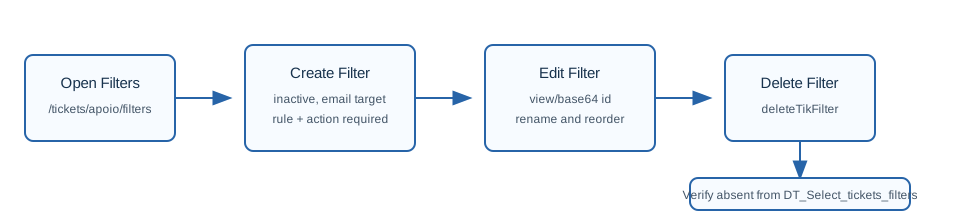
/tickets/apoio/filters- New filter route
/tickets/apoio/filters/new- Verified filter id
4- Final state
- Disposable filter deleted and absent from
DT_Select_tickets_filters.
Create a Filter
- Open Tickets, Support Files, then Filters.
- Click Add Filter.
- Fill required Name.
- Fill required Execution Order. OfficeGest runs filters according to this order.
- Confirm Destination channel. In the verified page, the target was E-Mail.
- Use Add rule and define at least one active rule. For email filters, available rule fields include sender name, sender email, recipient name, recipient email, CC name, CC email, addresses name, addresses email, and subject.
- Choose the rule operator: equal to, different from, contains, does not contain, starts by, ends with, or match.
- Enter the rule value.
- Define at least one action. Available actions include rejecting the ticket, disabling automatic response, setting status, assigning email account, department, priority, topic, SLA, or collaborator.
- Only enable Active when the filter is ready to affect incoming tickets.
- Click Save.
The verified create used an inactive email filter named AI filter 153928, execution order 98, one active rule subject contains AI-FILTER-153928, and action Disable automatic response. The create response was {"success":true,"id":4}.
Edit a Filter
- From the filters list, click the row edit action.
- OfficeGest opens
/tickets/apoio/filters/view/{base64 id}. - Change the name, execution order, rules, active flag, or actions.
- Click Save.
- Return to the list and confirm the row shows the updated values.
The verified edit opened /tickets/apoio/filters/view/NA==, loaded filter_id=4, then saved AI filter edit 153928 with execution order 99 and rule value AI-FILTER-EDIT-153928. The update response was {"success":true,"id":"4"}.
Delete a Filter
- From the filters list, click the row delete action.
- Confirm the Are you sure you want to delete? prompt.
- Confirm the row disappears from the filters list.
Delete calls deleteTikFilter with the filter id. The verified delete used id=4 and returned {"success":true}. A final DT_Select_tickets_filters call confirmed AI filter edit 153928 no longer existed.
Important Validation Notes
- Rule required: creating without a rule returned
{"success":false,"message":"No set rule"}. - Action required: creating with a rule but no action returned
{"success":false,"message":"No definite action"}. - Active controls impact: inactive filters still save, but should not affect incoming tickets until the Active checkbox is enabled.
Artifacts
raw/playwright/workflows/ticket-filters-crud-20260519T153928Z.jsonraw/playwright/workflows/ticket-filters-new-inspect-20260519T170900Z.jsonraw/playwright/workflows/ticket-filters-source-20260519T153600Z.txtassets/screenshots/ticket-filters-crud-20260519T153928Z-01-filter-new-form.pngassets/screenshots/ticket-filters-crud-20260519T153928Z-02-filter-view-after-create.pngassets/screenshots/ticket-filters-crud-20260519T153928Z-03-filters-after-delete.png