Evidence Summary
- Workflow run
ticket-status-crud-20260519T142644Z- Route
/tickets/apoio/status- Status id
6- Final state
- Disposable status deleted and absent from
DT_Select_tickets_status.
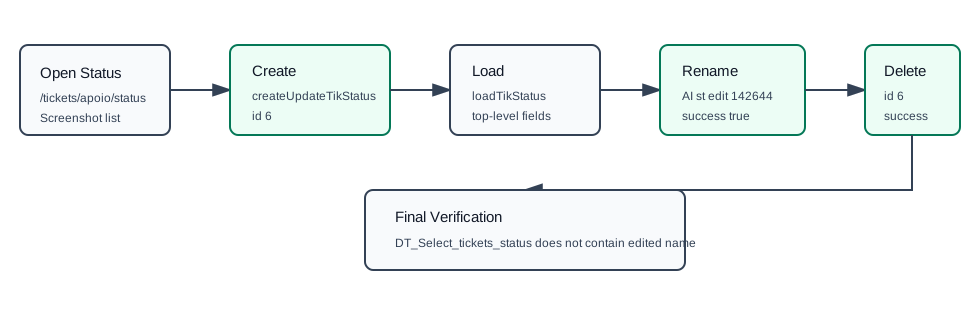
Create or Edit
- Open Tickets, Support Files, then Status.
- Click Add Status to open the modal.
- Fill required Name.
- Choose the status type. The verified disposable row used
normal, displayed as Standard. - Use Active, Can Chosen, Closed Can Reopen, and Ask Time to control ticket workflow behavior.
- Click Save.
Create and update both submit createUpdateTikStatus with the serialized status form. The verified create used status_name=AI st 142644, status_type=normal, status_active=1, status_can_chosen=1, status_closed_can_reopen=1, and ask_time=1. It returned {"success":true,"id":6}.
Edit loads a row with loadTikStatus. The verified update used status_id=6 and status_name=AI st edit 142644, returning {"success":true,"id":"6"}.
Delete
- Click the delete action on the status row.
- Confirm the prompt.
Delete calls deleteTikStatus with id=6. The response returned {"success":true}. A final DT_Select_tickets_status call confirmed AI st edit 142644 no longer existed.
Artifacts
raw/playwright/workflows/ticket-status-crud-20260519T142644Z.jsonraw/playwright/workflows/ticket-status-source-20260519T142500Z.txtassets/screenshots/ticket-status-crud-20260519T142644Z-01-status-list.pngassets/screenshots/ticket-status-crud-20260519T142644Z-02-status-after-delete.png