Evidence Summary
- Workflow run
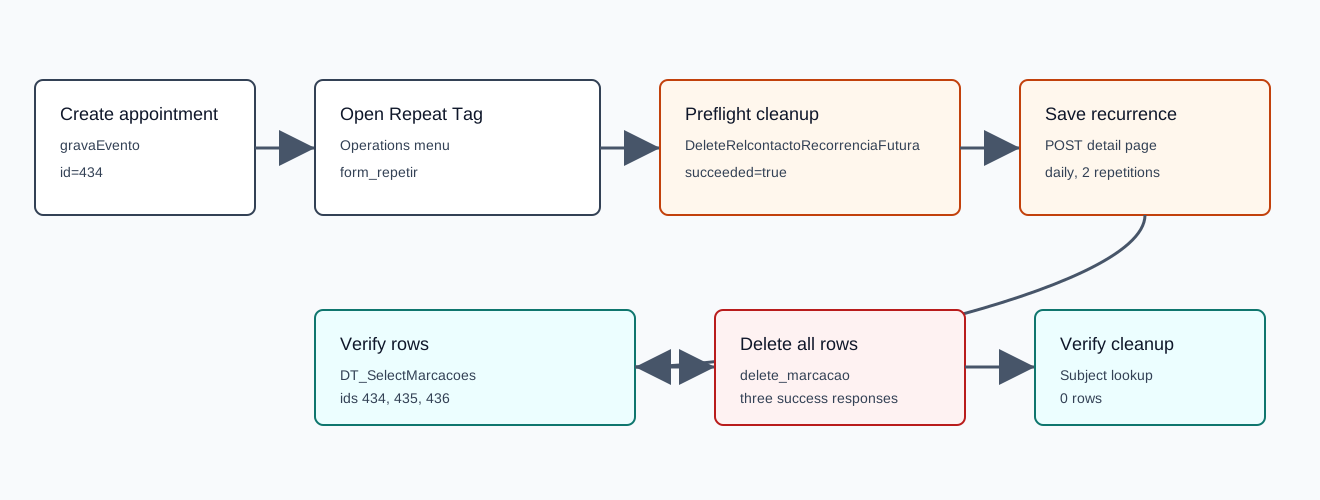
crm-appointment-repeat-20260519T121620Z- Source appointment
434- Generated rows
434,435,436- Repeat setup
- Daily, all days, end at
2repetitions - Final state
rowsAfterCleanup=0
Before You Start
- Open the appointment detail page from
/crm/marcacoes. - Use the Operations menu, then Repeat Tag.
- The repeat modal exposes Daily, Weekly, and Monthly periods.
- End mode can be Until the date or End at a number of repetitions.
Repeat Daily
- Open Operations and choose Repeat Tag.
- Select Diary.
- Choose Until the date with an end date/time, or choose End at and enter the repetition count.
- Choose All or Working Days.
- Set the interval in day(s).
- Click Save and confirm the warning about erasing future visits associated with the recurrence.
The verified run used SelectPeriodo=1, endRepeat=F, Ocurrencias=2, Days=T, todosD=1, DataInicio=20/05/2026, and HoraInicio=09:00. OfficeGest posted the repeat form back to /crm/marcacoes/view/NDM0.
Repeat Weekly or Monthly
- Weekly: select Weekly, set the number of weeks in
todosS, and choose weekday checkboxes such as Monday, Tuesday, or Friday. - Monthly by day: select Monthly, keep Day of the month, then choose
CadaDiaand intervalCadaMes. - Monthly by weekday: select Monthly, choose Week Day, then choose the ordinal week, weekday, and month interval.
These controls were present in the same verified form. The state-changing run used the daily path only to keep cleanup bounded.
What OfficeGest Does
Before saving recurrence changes, the page calls DeleteRelcontactoRecorrenciaFutura with numrel and idrecorrencia. The verified response was {"succeeded":true,"message":null}. The form post then created list rows 434, 435, and 436 for the same subject. The rows appeared at 2026-05-20 09:00 and 2026-05-21 09:00.
Artifacts
raw/playwright/workflows/crm-appointment-repeat-20260519T121620Z.jsonassets/screenshots/crm-appointment-repeat-20260519T121620Z-01-before-create.pngassets/screenshots/crm-appointment-repeat-20260519T121620Z-02-repeat-form.pngassets/screenshots/crm-appointment-repeat-20260519T121620Z-03-after-repeat.pngassets/screenshots/crm-appointment-repeat-20260519T121620Z-04-after-cleanup.png