Evidence Summary
- Workflow run
ticket-reply-attachment-20260519T133213Z- Ticket id
181- Attachment id
192- Filename
ai-ticket-attachment-20260519T133213Z.txt
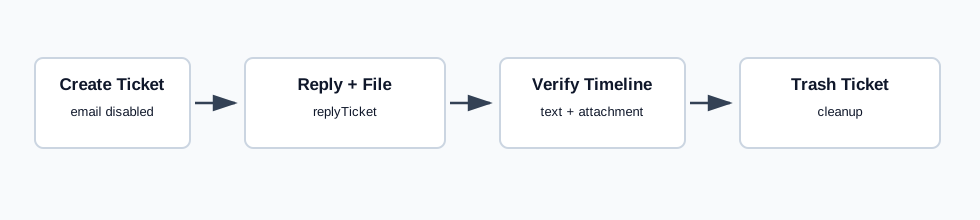
Reply with an Attachment
- Open a ticket detail page.
- Open the Reply tab.
- Write the reply body in the rich text editor.
- Optionally include historical posts and a signature.
- Add files in the attachment drop zone.
- Review Send email before sending.
- Click Send.
The verified safe request used tickets / replyTicket with department=2, ticketID=181, HTML reply_content, empty reply_signature, send_email=0, macro_ticket=0, empty status/assigned/priority update objects, empty system_attach, and file field anexos[]. The response returned {"succeeded":true,"message":{"data":"true"}}.
Verify the Timeline
After reload, the ticket detail page showed the reply marker AI ticket reply with attachment 20260519T133213Z and the attachment filename ai-ticket-attachment-20260519T133213Z.txt. The attachment link had id 192.
Artifacts
raw/playwright/workflows/ticket-reply-attachment-20260519T133213Z.jsonassets/screenshots/ticket-reply-attachment-20260519T133213Z-01-detail-after-create.pngassets/screenshots/ticket-reply-attachment-20260519T133213Z-02-detail-after-reply-attachment.pngassets/screenshots/ticket-reply-attachment-20260519T133213Z-03-detail-after-trash.png