Evidence Summary
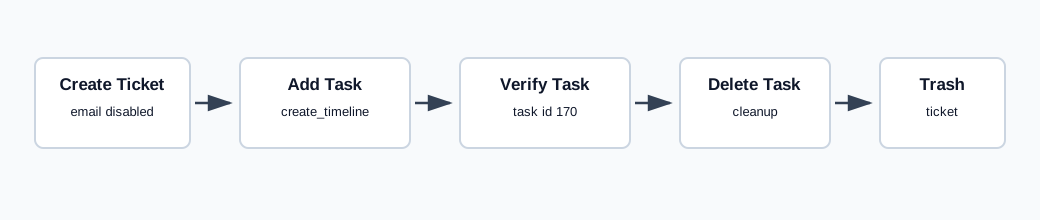
- Workflow run
ticket-tasks-20260519T133625Z- Ticket id
182- Task id
170- Final state
- Task deleted; ticket marked as trash.
Add a Task
- Open a ticket detail page.
- Open Operations and choose Add Tasks.
- Click Add Item.
- Fill duration, task designation, scheduled date/time, assigned user, and optionally task type.
- Optionally fill the resolution/body editor.
- Click Add.
The verified request used tickets / create_timeline_resolutions with serialized modal form fields: ticket_id=182, empty resolution_id, one tasks[1] row, duration 00:15, designation AI ticket task 20260519T133625Z, scheduled date 19/05/2026, scheduled time 12:00, assigned user 1, and rich text modal_tasks_body. The response returned {"success":true}.
Verify and Delete
After reload, the task timeline contained task id 170, the designation, assigned user Demo, duration 15m, and task status controls. Deletion used tickets / delete_resolution_task with id=170. The response returned {"success":true,"affected_rows":1}, and the final detail reload no longer contained the task marker.
Separate controlled workflows cover completing a ticket task and converting a task into a ticket.
Artifacts
raw/playwright/workflows/ticket-tasks-20260519T133625Z.jsonassets/screenshots/ticket-tasks-20260519T133625Z-01-detail-after-create.pngassets/screenshots/ticket-tasks-20260519T133625Z-02-detail-after-task-create.pngassets/screenshots/ticket-tasks-20260519T133625Z-03-detail-after-task-delete.pngassets/screenshots/ticket-tasks-20260519T133625Z-04-detail-after-trash.png