Evidence Summary
- Workflow run
crm-appointment-contact-20260519T115909Z- Appointment id
434- Entity relation
258- Entity
C-910/100 Ouvidos Lda- Contact
23/100 Ouvidos Lda- Contact link action
create_relcont_entity_contact- Contact unlink action
delete_relcont_entity_cont
Before You Start
- First link an entity to the appointment. See How to Link a CRM Appointment to an Entity.
- Open the appointment entity table and click the add-contact control on the entity row.
- Only contacts belonging to the selected entity are offered. For customer
910, the verified selector returned contact23. - Keep notification and notify-now flags unchecked unless notification side effects are intended.
Link the Contact
- Open the add-contact modal from the entity row.
- Select one or more contacts.
- Leave Schedule SMS, Schedule Email, Notify now SMS, and Notify now Email unchecked for a pure relationship update.
- Click Save.
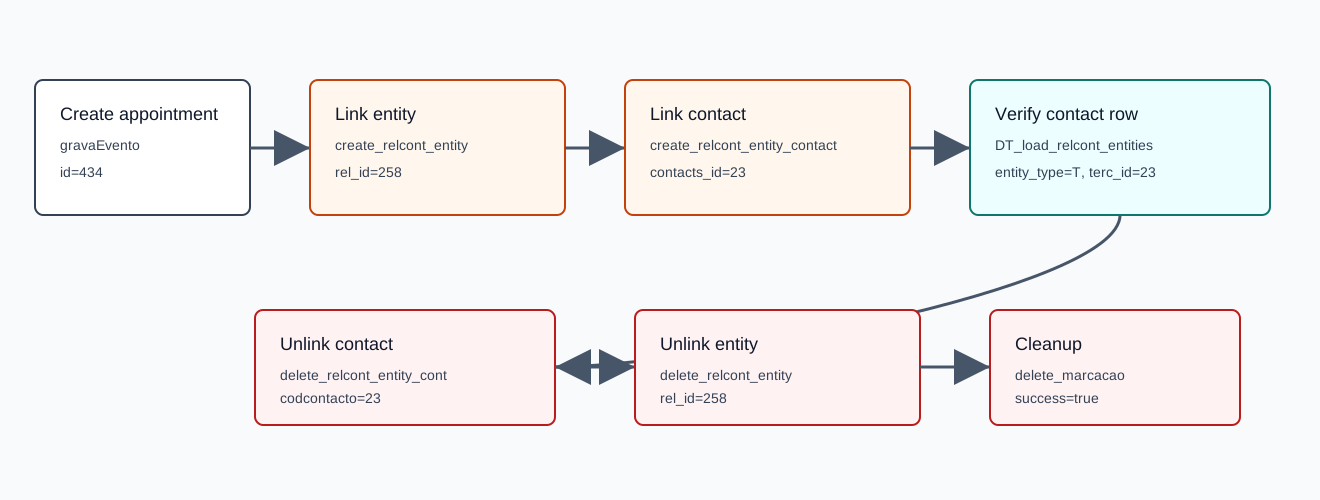
The verified request used action=create_relcont_entity_contact, terc_type=C, rel_id=258, contacts_id=23, and all notification/send flags set to 0. The response used numeric success, {"success":1}, with count=1 and count_success=1.
Verify the Contact
DT_load_relcont_entities returned the child contact row with entity_type=T, relcont_id=434, terc_id=23, id=23, name=100 Ouvidos Lda, rel_id=258, notify_sms=0, and notify_email=0.
Unlink the Contact
- Click the delete icon on the contact row.
- Confirm the delete prompt.
- Verify the contact child row disappears from the appointment entity table.
The verified unlink request used action=delete_relcont_entity_cont, relcontent_id=258, and codcontacto=23. The response was {"success":true}. The entity relation was then removed with delete_relcont_entity, and the disposable appointment was deleted with delete_marcacao.
Artifacts
raw/playwright/workflows/crm-appointment-contact-20260519T115909Z.jsonassets/screenshots/crm-appointment-contact-20260519T115909Z-01-before-create.pngassets/screenshots/crm-appointment-contact-20260519T115909Z-02-before-contact-link.pngassets/screenshots/crm-appointment-contact-20260519T115909Z-03-after-contact-link.pngassets/screenshots/crm-appointment-contact-20260519T115909Z-04-after-contact-unlink.pngassets/screenshots/crm-appointment-contact-20260519T115909Z-05-after-delete.png
For the appointment Interventions tab, see How to Manage CRM Appointment Interventions.