Evidence Summary
- Workflow run
crm-communication-create-20260519T103424Z- Created communication
39- Description
AI Demo CRM Communication 20260519T103424Z- Final route
/crm/communications/view/Mzk=- Final state
status=RDY,email=1,sms=0,totalcontactos=0
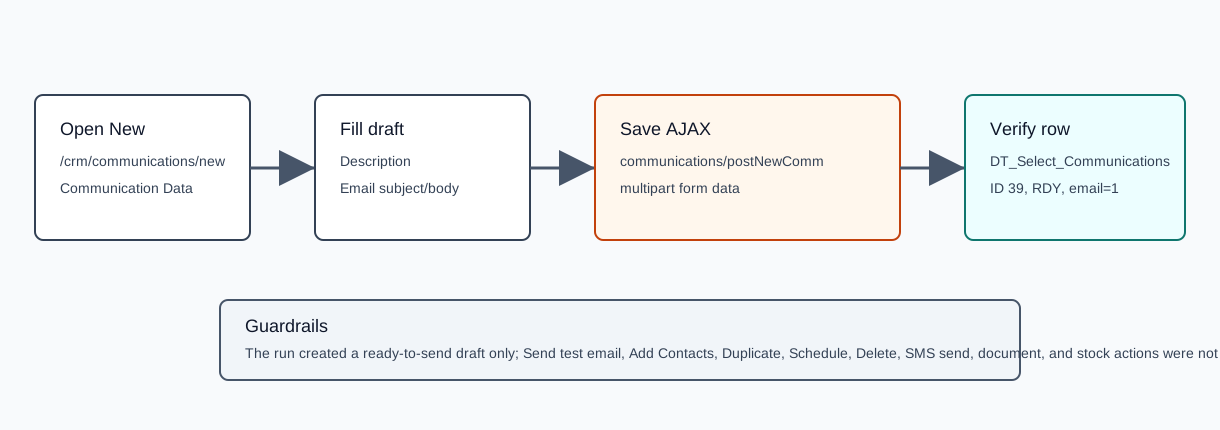
Before You Start
- Open CRM then Operations then Comunications, or navigate to
/crm/communications. - Click New Communication, or open
/crm/communications/new. - The verified run created a draft only. It did not use Send test email, Add Contacts, Duplicate, Schedule, Delete, SMS sending, documents, or stock actions.
Create the Draft
- In Communication Data, choose the channel. The verified run enabled Email only.
- Enter a Description. The verified value was
AI Demo CRM Communication 20260519T103424Z. - Optionally choose a Campaign and one or more Business Area values. The verified run left both empty.
- For email communications, choose a sender or leave Use Base Configuration, then enter Subject E-Mail.
- Write the email body in the editor. The verified body was
<p>AI verified CRM communication draft 20260519T103424Z</p>. - Click Save.
Verified Payload
The Save button serializes the form as multipart data and posts it to the central AJAX endpoint.
| Field | Verified value | Meaning |
|---|---|---|
endpoint | POST /ajaxserver | Central AJAX endpoint. |
action | communications | Communication module action group. |
option | postNewComm | Creates the communication draft. |
Descricao | AI Demo CRM Communication 20260519T103424Z | Communication description. |
MeioUtiliz[] / MeioUtiliz | M | Email channel enabled. |
AssuntoEMail | AI Demo communication subject 20260519T103424Z | Email subject. |
TextoMail | <p>AI verified CRM communication draft 20260519T103424Z</p> | Email body HTML. |
CodCampanha, areas[], Attachments[] | null | No campaign, business area, or attachment was selected. |
Confirm the Draft
- After saving, confirm the browser opens the communication detail page. The verified route was
/crm/communications/view/Mzk=, whereMzk=is the encoded id for communication39. - Confirm the header shows the communication id, description, and Ready to Send.
- Return to the communications list and search by the description.
- Verify the row has
status=RDY,email=1,sms=0,totalcontactos=0, and the expected email subject.
The verified DT_Select_Communications lookup returned one row with id=39, description=AI Demo CRM Communication 20260519T103424Z, status=RDY, email=1, sms=0, total_sent=0, and total_unsent=0.
This was the state immediately after the creation run. A later verified delete workflow removed the same disposable communication.
Detail Page Actions
After creation, the communication detail page exposes Email Content, List Comunication, sender and attachment controls, label insertion, and action buttons for Send test email, Delete, Add Contacts, Duplicate, Save, and Schedule. See How to Edit a CRM Communication, How to Add Contacts to a CRM Communication, How to Edit a Contact in a CRM Communication, How to Delete a Contact from a CRM Communication, How to Delete All Contacts from a CRM Communication, How to Remove Duplicate Contacts from a CRM Communication, How to Schedule a CRM Communication, How to Delete a CRM Communication, and How to Duplicate a CRM Communication for the verified detail-page flows. Test-send still needs a separate controlled probe because it can trigger an external email.
Artifacts
raw/playwright/workflows/crm-communication-create-20260519T103424Z.jsonassets/screenshots/crm-communication-create-20260519T103424Z-01-new-communication-empty.pngassets/screenshots/crm-communication-create-20260519T103424Z-02-new-communication-filled.pngassets/screenshots/crm-communication-create-20260519T103424Z-03-after-save.png